The easy way
- Install Stash, move it to Applications and open it once.
- Open Settings → AI and click Connect next to Claude Code.
- Start a new session.
Stash changes only its own entry, keeps a one-time backup of the file, and stops without changing anything if the file is locked or looks unusual.
By hand
claude mcp add --scope user stash -- /Applications/Stash.app/Contents/MacOS/Stash --mcp--scope user makes it work in every project. Without it, it's only for the folder you're in.
Check it
In a session type /mcp: stash should be there, connected.
Try asking
- “Use the error I just copied and fix it.”
- “The design colours I copied from Figma this morning: put them in tokens.css.”
- “Save this summary to my Stash.”
Ready-made prompts
Stash also brings prompts to the slash menu: catchup, standup, recap, find, draft, said, clipboard, keep and teach. They work with nothing after them, or with a few words, like “standup yesterday”.
Before it changes anything
Claude Code can ask you first, so Stash does: saving or copying waits for your yes. Reading doesn't ask; the notch usually says when it happens.
Talk instead of type
What it can see
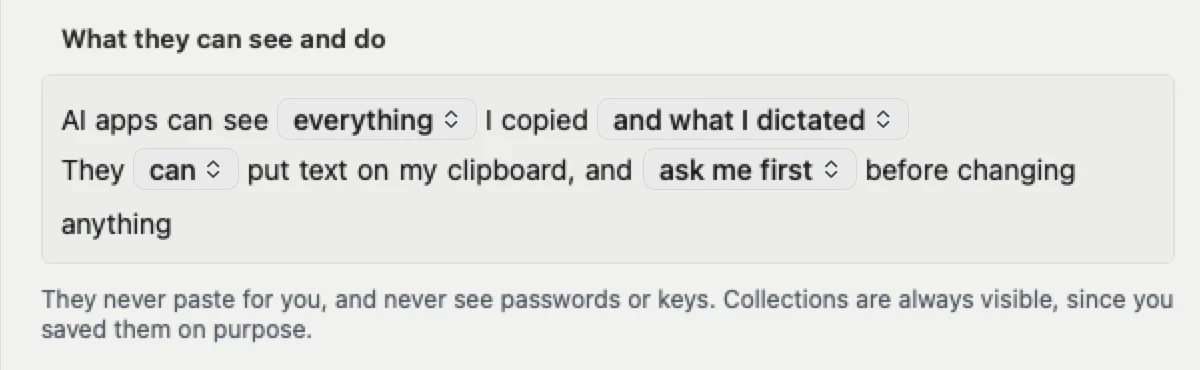
At first: your whole history, collections, dictations, snippets and dictionary, except secrets Stash recognises. What it reads goes to that app and usually to its company. Narrow it in Settings → AI: the last hour, day, 7 or 30 days, with or without dictations. The full list.
Questions
Does it work in Claude Code on the web or over SSH?
No. It needs Claude Code running on the same Mac as Stash.
Does it fill my context?
Answers are kept short, with ids the model can ask more about. Tool descriptions do use some context, as with every server.
How do I remove it?
claude mcp remove --scope user stash, or Disconnect in Stash.